

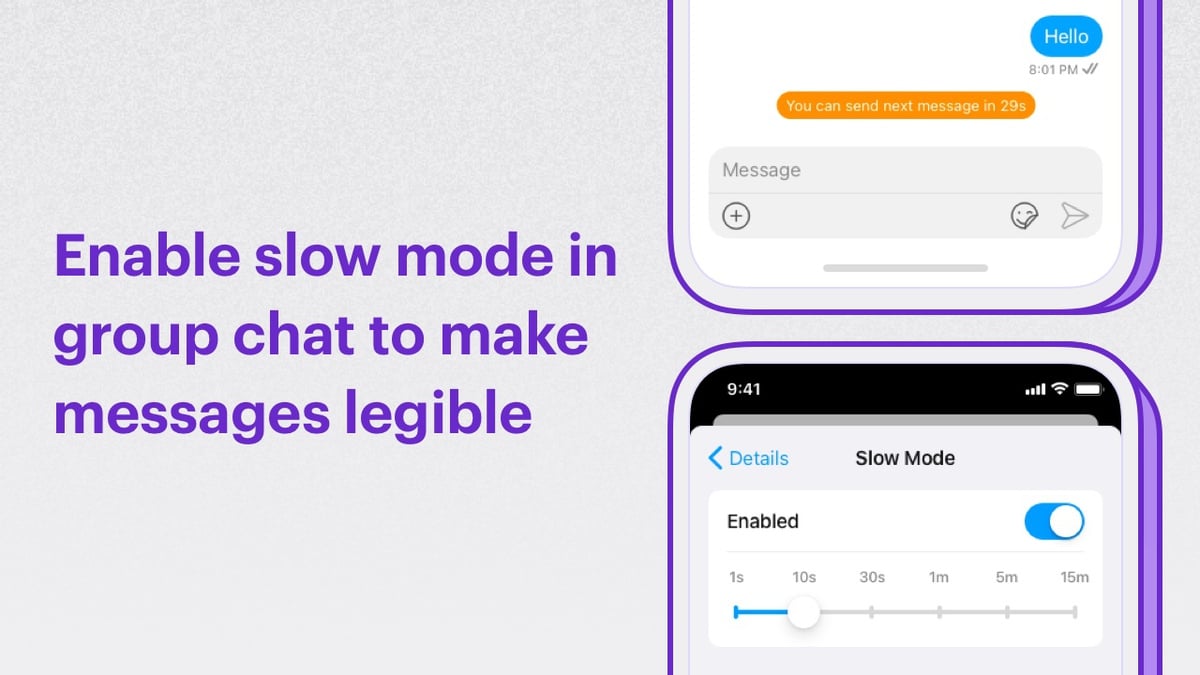
Extension settings
- Login to CometChat and select your app.
- Go to the Extensions section and enable the Slow mode extension.
How does Slow mode work?
Slow mode extension works great in groups with a large number of participants. Especially, during a live event with a potential for a flood of messages being sent every second. When the extension is enabled and enforced in a group, it allows the participants to send messages only after a certain intervals. This helps to keep chats readable for everyone during large events. The extension has the following 4 parts:- Enabling the slow mode for a group
- Disabling the slow mode for a group
- Enforcing slow mode for participants
- Fetching the slow mode details
Enabling slow mode
Slow mode can be enabled only by the group admins or moderators. Participants cannot enable the slow mode. Once slow mode is enabled in a group, the information is shared with its members in real-time as a custom message. With this, it can be enforced immediately. You need to implement theonCustomMessageReceived listener in order to receive the Slow mode related messages. The message sent has the category of custom and type extension_slow-mode.
Following are the inputs required to enable slow mode in a particular group:
You can make use of the
callExtension method exposed by CometChat SDKs to enable slow mode as an admin/moderator.
- JavaScript
- Java
- Swift
Disabling slow mode
Slow mode can be disabled only by the group admins or moderators. Participants cannot disable the slow mode. Once slow mode is disabled in a group, the information is shared with its members in real-time as a custom message. With this, it can be turned off for that group immediately. Following are the inputs required to enable slow mode in a particular group:
You have to implement the
onCustomMessageReceived listener in order to receive the Slow mode related messages. The message sent has the category of custom and type extension_slow-mode.
You can make use of the callExtension method exposed by CometChat SDKs to disable slow mode as an admin/moderator.
- JavaScript
- Java
- Swift
Enforcing slow mode
This is handled by the extension for groups that have slow mode enabled as mentioned below:1. For participants of a group
If the moderator or admin of a group has enabled slow mode with the time of 1 min, then the participants will have to wait for 1 minute after sending a message. Once the participant has waited for 1 min, he/she then becomes eligible to send out the next message. If there’s an attempt by the participants to send a message before the interval has expired for them, the message gets blocked by the extension.2. For admins and moderators
The extension does not restrict moderators and admins of a group. Slow mode is enforced only for the participants.3. Change in member scope
If a participant is made an admin or moderator of a group, the slow mode is no longer applicable for him/her. Similarly, if an admin or moderator of a group is demoted to a participant, the slow mode will be applicable immediately to him/her as mentioned above.Fetching slow mode details
As mentioned above, the details about the enabling or disabling the slow mode are shared in real-time with the members as a custom message. But, it might happen that a few members are offline or are added later on to the group. Hence, it is important to make the same details available to them for a consistent experience. You can make use of thecallExtension method exposed by the CometChat SDKs to fetch the details about slow mode as a member of a group.
- JavaScript
- Java
- Swift