

Extension settings
- Login to CometChat and select your app.
- Go to the Extensions section and enable the Report user extension.
- Open the settings for this extension.
-
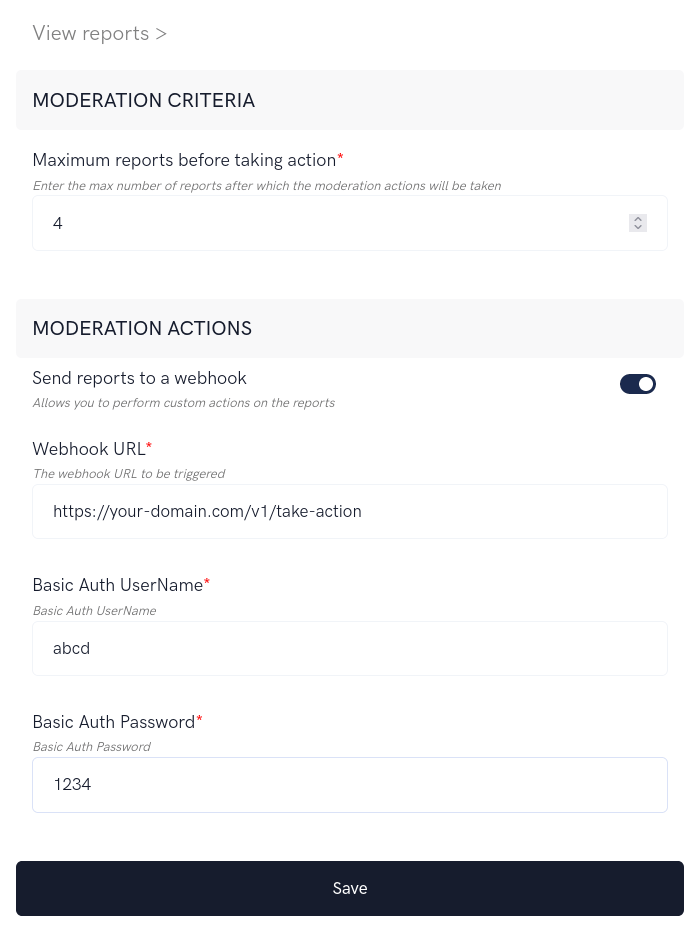
The settings page has the following:
- Moderation criteria: The max number of reports after which you want to be notified.
- Moderation actions: Get the list of reports on the configured Webhook URL.
How does it work?
The extension has the following functionalities:- Allowing end-users to report other users.
- Allowing admins to login to the Dashboard to take action on the reports.
1. Reporting a user
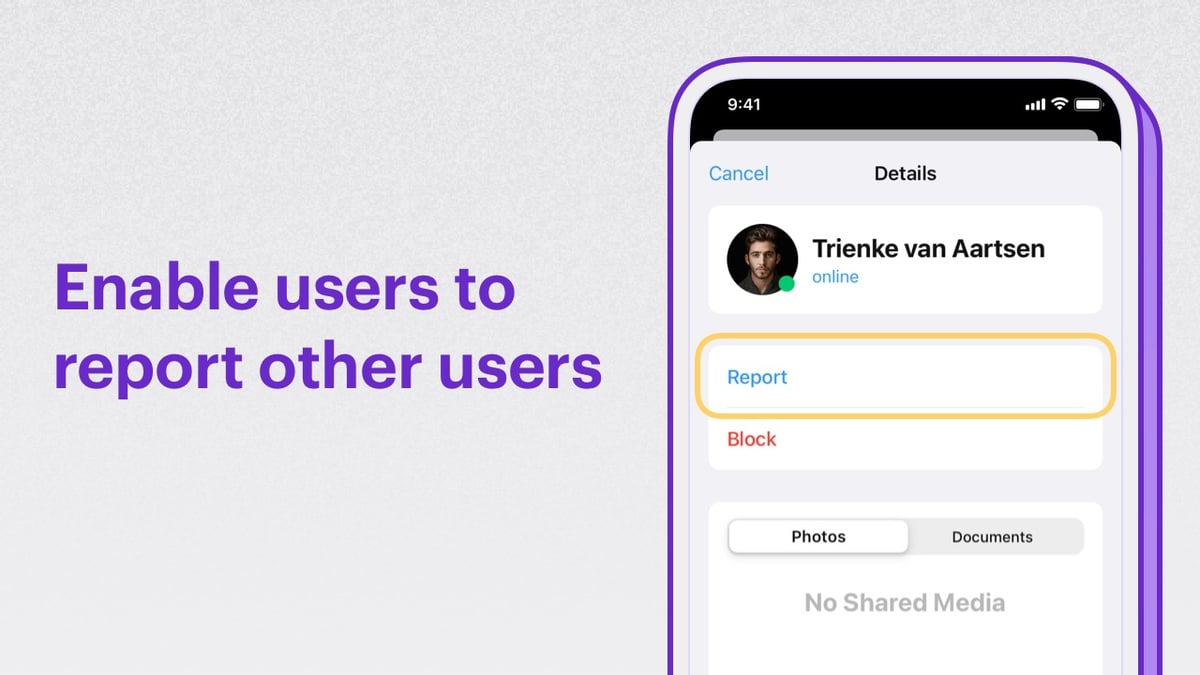
Users can be reported in either group conversations or one-on-one conversations. By clicking on the user’s avatar, you can show an item in the context menu called “Report”. Clicking on the “Report” button should open up a modal asking for the reason. Here’s the description of the parameters that need to be passed to the extension:
Once you have the user to be reported along with the reason, make use of the callExtension method provided by the SDK to submit the report:
- JavaScript
- Java
- Swift
2. View reports and take action on a reported user
- Open up the Extension’s settings page
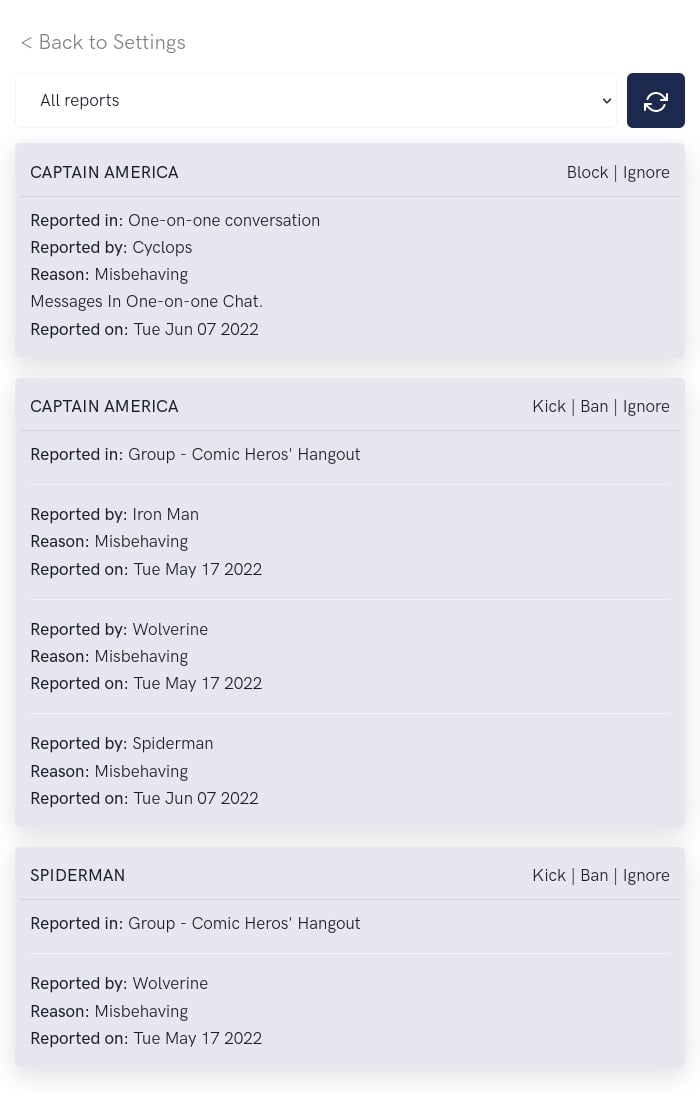
- Click “View Reports” link. This will load all the reports.
-
Select the criteria from the dropdown:
- One-on-one conversations => Lists the users who have been reported in One-on-one conversations.
- Group conversations => List the users who have been reported in a Group.
- All reports => Lists all the reports.
-
The following actions can be taken for users reported in Group:
- Kick => Reported user is kicked out of the group.
- Ban => Reported user is banned from the group.
- Ignore => The report is ignored.
-
The following actions can be take for users reported in one-on-one conversations:
- Block => The reported user is blocked on behalf of the reporter.
- Ignore => The report is ignored.
- To load new reports, click on the Refresh button.