

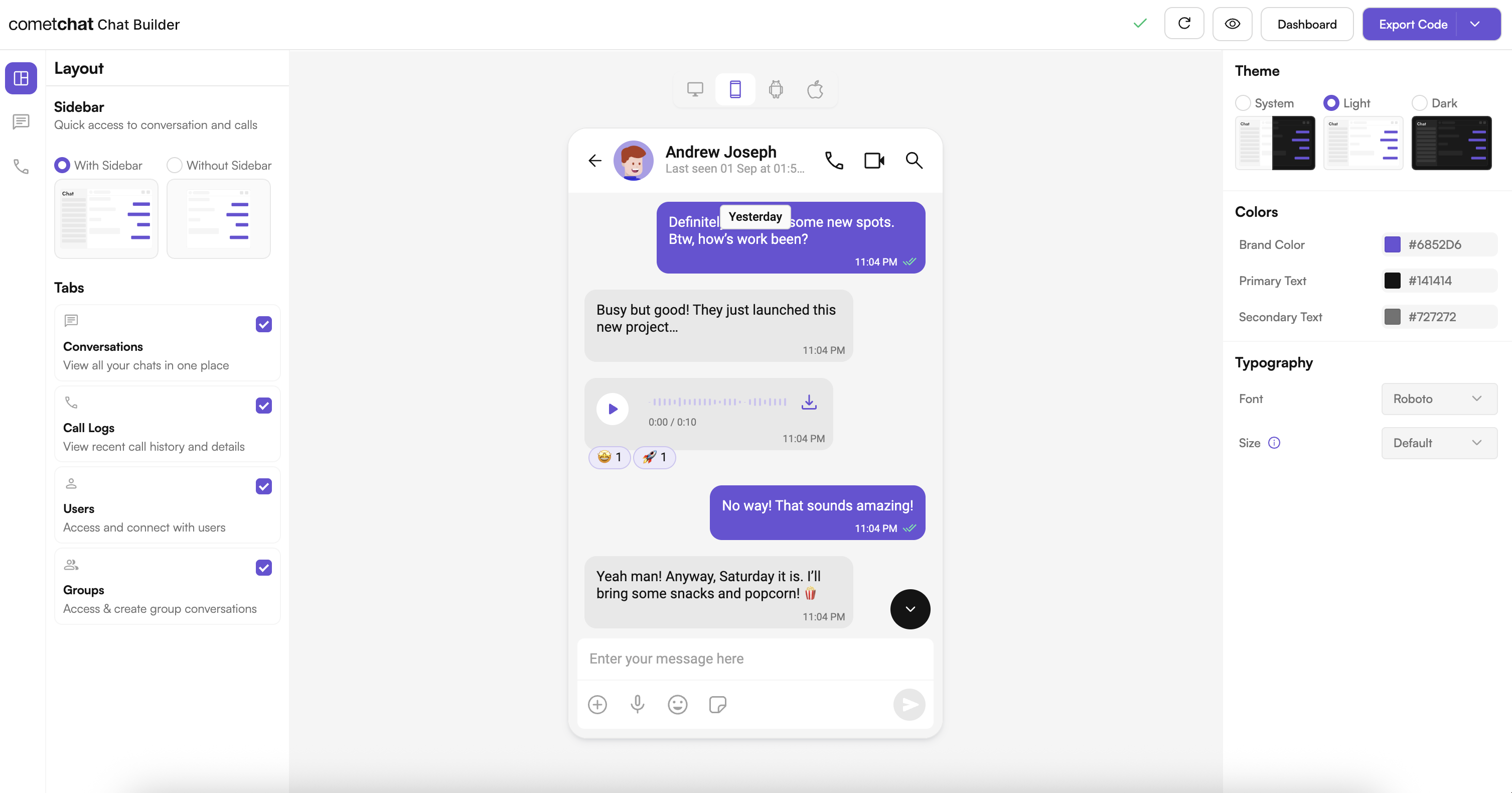
Complete Integration Workflow
- Clone the React Native Builder sample.
- Install dependencies (Node modules + CocoaPods) and add your CometChat credentials.
- Run the sample on iOS/Android, scan/import a QR configuration, and validate the experience.
- Copy the generated config store files into your own React Native app.
- Wrap UI Kit components with the Builder-provided theme/settings.
- Extend with fonts, persistence, and feature toggles as needed.
Run the CometChat UIKit Builder Sample App
1. Download & Install
2. iOS Dependencies
3. Configure CometChat credentials
Editsrc/utils/AppConstants.tsx:
4. Run the Builder sample
Integrate Builder Configuration into Your React Native App
1. Install shared dependencies
2. Copy configuration files
From the sample project, copy:src/config/store.ts(Zustand store that manages Builder settings)src/config/config.json(default configuration template)
yourProject/src/config/.
3. Wire the Builder theme into UI Kit
4. Respect feature toggles in UI Kit components
- Chat features (typing indicator, threads, mentions, reactions, etc.).
- Call features (1:1 voice, group video, lobby).
- Layout and discovery (tabs, sidebar, chat type).
settings.chatFeatures, settings.callFeatures, and settings.layout inside the Builder JSON, so you can decide which CometChat components to render or hide per experience.
Project Structure Snapshot
Configuration Schema
Each QR code or exported JSON follows this structure:Advanced Configuration
Custom fonts
- Add fonts to
ios/<App>/Resources/Fonts/andandroid/app/src/main/assets/fonts/. - Map the font family in
App.tsx:
Persisting Builder settings manually
Troubleshooting & Tips
- Metro or Gradle errors: ensure Node 18+, React Native 0.77+, and the correct Android/iOS toolchains are installed.
- Plugin/config not loading: verify
AppConstants.tsxvalues and network connectivity when launching the Builder. - QR code parsing issues: validate that the JSON matches the schema above; malformed objects will be ignored.
- UI Kit mismatches: confirm both the Builder sample and your production app use the same version of
@cometchat/chat-uikit-react-native.
Next Steps
- Theme deep dive: Theme introduction
- UI Kit components: React Native UI Kit overview
- Support ticket: https://help.cometchat.com/hc/en-us/requests/new
- GitHub issues: https://github.com/cometchat-team/uikit-builder-app-react-native/issues